25.5 Computer Use and GUI Agents
Goal of this section: Master the core architecture and implementation of Computer Use Agents, and understand the latest progress in GUI automation in 2025–2026.
From "Conversation" to "Operation": The Final Form of Agents
The multimodal Agents we have built so far are still fundamentally "conversational" — the user asks, the Agent answers. In real work, however, we frequently need an Agent to operate software directly: open a browser and search for information, fill data into Excel, modify code in an IDE, install software in an operating system.
The Computer Use Agent was created precisely to solve this problem. The Agent no longer just "talks"; it "does the work with its hands" — it understands screenshots, computes click coordinates, and sends keyboard input, operating a computer's graphical user interface (GUI) the same way a human does.
📄 Milestones:
- October 2024: Anthropic released the Computer Use beta for Claude 3.5 Sonnet, the first time a mainstream large model could directly operate a desktop computer.
- January 2025: OpenAI released Operator, built on the CUA (Computer Using Agent) model for browser automation.
- March 2025: Google released Mariner, letting Gemini 2.0 operate the Chrome browser.
- 2025–2026: The open-source community produced frameworks such as SWE-Agent, OpenHands, and OSAtlas.
The Core Computer Use Loop
A Computer Use Agent works almost exactly the way a person operates a computer:
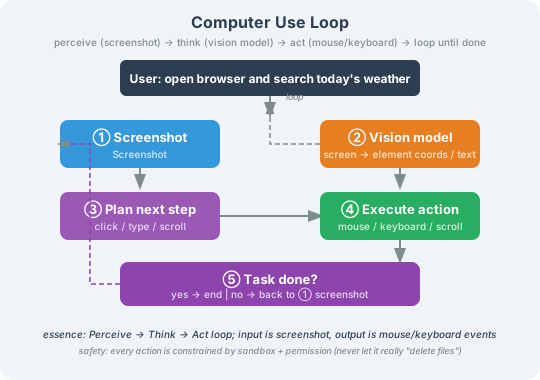
This is fundamentally a Perceive-Think-Act loop — only here the perceptual input is a screenshot and the action output is a mouse/keyboard event.
Anthropic Computer Use in Practice
Basic Usage
Anthropic exposes Computer Use through a Beta API, centered on the computer_20241022 tool:
import anthropic

client = anthropic.Anthropic()

# Define the Computer Use tool
computer_tool = {
    "type": "computer_20241022",
    "name": "computer",
    "display_width_px": 1920,
    "display_height_px": 1080,
    "display_number": 1,
}

# Additional helper tools
bash_tool = {
    "type": "bash_20241022",
    "name": "bash",
}

text_editor_tool = {
    "type": "text_editor_20241022",
    "name": "str_replace_based_editor",
}


def run_computer_use(task: str, max_steps: int = 20) -> list[dict]:
    """Run a Computer Use Agent to execute a task

    Args:
        task: the user's natural-language instruction
        max_steps: maximum number of steps (guards against infinite loops)
    """
    messages = [{"role": "user", "content": task}]
    steps = []

    for step in range(max_steps):
        response = client.beta.messages.create(
            model="claude-sonnet-4-20250514",
            max_tokens=1024,
            tools=[computer_tool, bash_tool, text_editor_tool],
            messages=messages,
            betas=["computer-use-2025-01-24"],
        )

        # Collect all tool calls
        tool_calls = []
        for block in response.content:
            if block.type == "text":
                print(f"🤖 Agent: {block.text}")
            elif block.type == "tool_use":
                tool_calls.append(block)
                steps.append({
                    "step": step + 1,
                    "tool": block.name,
                    "input": block.input
                })

        if not tool_calls:
            # The Agent believes the task is finished
            break

        # Execute the tool calls and return the results
        tool_results = []
        for tool_call in tool_calls:
            result = execute_tool_action(tool_call)
            tool_results.append({
                "type": "tool_result",
                "tool_use_id": tool_call.id,
                "content": result,
            })

        # Update the conversation history
        messages.append({"role": "assistant", "content": response.content})
        messages.append({"role": "user", "content": tool_results})

    return steps


def execute_tool_action(tool_call) -> list[dict]:
    """Execute a Computer Use tool call

    In a real deployment you need to wire in actual screen control here:
    - pyautogui / pynput to control the mouse and keyboard
    - Pillow to capture the screen
    - a sandboxed environment to run bash commands

    What follows is the core logic of a simulated implementation.
    """
    action = tool_call.input

    if tool_call.name == "computer":
        action_type = action.get("action")

        if action_type == "screenshot":
            # Take a screenshot and return a base64-encoded image
            import pyautogui
            from PIL import Image
            import io, base64

            screenshot = pyautogui.screenshot()
            buffer = io.BytesIO()
            screenshot.save(buffer, format="PNG")
            img_b64 = base64.b64encode(buffer.getvalue()).decode()

            return [{
                "type": "image",
                "source": {
                    "type": "base64",
                    "media_type": "image/png",
                    "data": img_b64,
                }
            }]

        elif action_type == "mouse_move":
            x, y = action["coordinate"]
            import pyautogui
            pyautogui.moveTo(x, y)
            return [{"type": "text", "text": f"Mouse moved to ({x}, {y})"}]

        elif action_type == "left_click":
            x, y = action["coordinate"]
            import pyautogui
            pyautogui.click(x, y)
            return [{"type": "text", "text": f"Left click at ({x}, {y})"}]

        elif action_type == "type":
            text = action["text"]
            import pyautogui
            pyautogui.typewrite(text, interval=0.05)
            return [{"type": "text", "text": f"Typed text: {text}"}]

        elif action_type == "key":
            keys = action["key"]
            import pyautogui
            pyautogui.hotkey(*keys.split("+"))
            return [{"type": "text", "text": f"Key press: {keys}"}]

        elif action_type == "scroll":
            x, y = action.get("coordinate", (0, 0))
            delta = action.get("delta", 1)
            import pyautogui
            pyautogui.scroll(delta, x, y)
            return [{"type": "text", "text": f"Scrolled: delta={delta}"}]

    elif tool_call.name == "bash":
        # Run a bash command inside the sandbox
        import subprocess
        cmd = action.get("command", "")
        try:
            result = subprocess.run(
                cmd, shell=True, capture_output=True,
                text=True, timeout=30
            )
            output = result.stdout + result.stderr
        except subprocess.TimeoutExpired:
            output = "Command timed out after 30 seconds"
        return [{"type": "text", "text": output}]

    return [{"type": "text", "text": "Unknown action"}]


# Usage example
steps = run_computer_use(
    "Open a browser, search for 'latest AI papers April 2026', "
    "and save the top 3 results to a file"
)
print(f"\nExecuted {len(steps)} actions in total")
Designing Safety Boundaries
A Computer Use Agent carries far more risk than an ordinary text Agent — it can operate your computer directly. When deploying to production you must set strict safety boundaries:
class SafeComputerUseAgent:
    """A Computer Use Agent with safety boundaries"""

    # Blacklist of dangerous operations
    FORBIDDEN_COMMANDS = [
        "rm -rf", "del /s", "format", "mkfs",
        "shutdown", "reboot", "passwd",
        "curl *| *sh", "wget *| *sh",  # piping into a shell
    ]

    # Protected sensitive paths
    PROTECTED_PATHS = [
        "/etc/passwd", "/etc/shadow",
        "/.ssh/", "/.gnupg/",
        "C:\\Windows\\System32",
    ]

    # Allowlist of applications the Agent may operate (optional)
    ALLOWED_APPS = [
        "chrome", "firefox", "safari",       # browsers
        "code", "cursor", "vim",             # editors
        "excel", "numbers",                  # spreadsheets
        "terminal", "iterm", "cmd",          # terminals
    ]

    def __init__(self):
        self.screenshot_count = 0
        self.total_actions = 0
        self.max_actions_per_task = 50  # max actions for a single task

    def validate_bash_command(self, command: str) -> tuple[bool, str]:
        """Check whether a bash command is safe"""
        cmd_lower = command.lower().strip()

        # Check the blacklist
        for forbidden in self.FORBIDDEN_COMMANDS:
            if forbidden.replace("*", "") in cmd_lower:
                return False, f"Dangerous command blocked: {forbidden}"

        # Check sensitive paths
        for path in self.PROTECTED_PATHS:
            if path.lower() in cmd_lower:
                return False, f"Protected sensitive path: {path}"

        return True, "OK"

    def validate_click_target(self, x: int, y: int,
                               screenshot_description: str) -> tuple[bool, str]:
        """Check whether a click target is safe

        Uses the screenshot description to judge whether the click region
        is reasonable.
        """
        # Check the action count
        self.total_actions += 1
        if self.total_actions > self.max_actions_per_task:
            return False, "Exceeded the max actions for a single task; forced stop"

        # Check whether a dangerous region was clicked (e.g. a delete confirmation dialog)
        dangerous_keywords = ["delete all", "format disk", "clear everything", "erase all"]
        if any(kw in screenshot_description for kw in dangerous_keywords):
            return False, "Dangerous UI detected; human confirmation required"

        return True, "OK"

    def get_confirmation(self, action: str, detail: str) -> bool:
        """Ask for human confirmation on high-risk operations"""
        print(f"\n⚠️  High-risk operation requested: {action}")
        print(f"   Details: {detail}")
        confirm = input("   Allow it? (y/N): ").strip().lower()
        return confirm == "y"
OpenAI Operator / CUA Model
In January 2025 OpenAI launched the CUA (Computer Using Agent) model, competing with Anthropic's Computer Use. CUA's defining characteristic is that it is specifically optimized for browser operation:
from openai import OpenAI

client = OpenAI()

def run_cua_agent(task: str) -> str:
    """Use the OpenAI CUA model to operate a browser

    The core API of the CUA model is response.action:
    it returns structured operation instructions rather than free text.
    """
    response = client.responses.create(
        model="computer-use-preview",
        tools=[{
            "type": "computer_use_preview",
            "display_width": 1280,
            "display_height": 720,
            "environment": "browser",  # CUA focuses on browser scenarios
        }],
        input=[{
            "role": "user",
            "content": task
        }]
    )

    return response


# Browser automation scenarios CUA is suited for
CUA_BROWSER_TASKS = {
    "form filling": "Fill out a Google Form: name 'John Smith', email 'john@example.com'",
    "information extraction": "Open JD.com, search for 'mechanical keyboard', and extract the price and name of the top 5 products",
    "web operation": "Create a new repository named 'my-agent' on GitHub",
    "form submission": "Search Trip.com for flights from Beijing to Shanghai, departing next Saturday",
}
Browser Use / Web Agent: The First Computer Use Scenario to Reach Production
Among all Computer Use scenarios, browser automation (Browser Use / Web Agent) was the first to be commercialized and is the easiest to scale. The reason is simple: a huge share of everyday work happens inside a browser — searching for information, filling in forms, operating SaaS back-offices, booking tickets, shopping, CRM data entry, and web data extraction.
The relationship between a Web Agent and a general GUI Agent can be understood like this:
| Dimension | Web Agent / Browser Use | General Computer Use Agent |
|---|---|---|
| Operating environment | Browser pages | The entire operating system and any application |
| Perceptual input | DOM, accessibility tree, screenshots, network requests | Screenshots, accessibility tree, system state |
| Action space | Click, type, scroll, select, navigate, download | Mouse, keyboard, command line, file system, app switching |
| Verifiability | URL, DOM state, page text, and form values are relatively easy to verify | Depends on screenshots and system state; much harder to verify |
| Security risks | Phishing pages, indirect prompt injection, unauthorized submissions | File destruction, system commands, cross-application mistakes |
| Representative products | OpenAI Operator, Google Mariner, Browser Use | Claude Computer Use, OpenHands, OSWorld Agent |
The Core Web Agent Loop
User goal → open/search a page → read DOM + screenshot → locate interactive elements → click/type/scroll → verify page state → continue to the next step or submit the result
Unlike a traditional crawler, a Web Agent does not merely "read web pages" — it can operate them. Unlike RPA, a Web Agent does not depend on a fixed script; it can make decisions dynamically as the page changes.
Why Is Browser Use a Frontier Priority?
- Web pages are the shell around real-world APIs: many business systems have no open API, but they do have a web interface.
- The execution environment is relatively standardized: a browser is far easier to sandbox, record trajectories in, and replay for testing than a desktop OS.
- Evaluation benchmarks are more mature: WebArena, VisualWebArena, and Mind2Web provide comparable tasks.
- The security challenges are representative: page content is untrusted external input and easily triggers indirect prompt injection.
Engineering Recommendations
A production-grade Web Agent should not rely on screenshot coordinates alone; a hybrid perception strategy is recommended:
DOM / Accessibility Tree: locate buttons, input fields, and links
Screenshots: understand visual layout, ad overlays, CAPTCHAs, complex widgets
Network state: judge whether the page finished loading and whether requests failed
Browser context: track URL, cookies, downloaded files, and tab state
This kind of Agent must be paired with the security material later in the book: page content must never be treated as a high-priority instruction, and high-risk actions such as placing an order, sending a message, or changing a configuration must go through permission checks and human confirmation.
Three Architectures for GUI Agents
From an implementation standpoint, GUI Agents fall into three architectures:
Architecture 1: Screenshot + Coordinate
Anthropic Computer Use and OpenAI CUA both use this architecture. The Agent looks at a screenshot and outputs coordinates.
# Pseudocode for the core loop
class ScreenshotCoordinateAgent:
    """Screenshot + coordinate architecture: the most general GUI Agent"""

    def run(self, task: str):
        while not self.is_done(task):
            # 1. Take a screenshot
            screenshot = self.take_screenshot()

            # 2. The LLM analyzes the screenshot and outputs an action
            action = self.llm.decide(
                task=task,
                screenshot=screenshot,
                history=self.action_history
            )

            # 3. Execute the action
            if action.type == "click":
                self.mouse.click(action.x, action.y)
            elif action.type == "type":
                self.keyboard.type(action.text)
            elif action.type == "scroll":
                self.mouse.scroll(action.delta)

            self.action_history.append(action)
Pros: Highly general — it can operate any GUI
Cons: Coordinate precision depends on screen resolution, and small elements are easy to mis-click
Architecture 2: Accessibility Tree
Use the operating system's Accessibility API to obtain a tree structure of interface elements, and match elements exactly instead of using coordinates.
import subprocess
import json

class AccessibilityTreeAgent:
    """Accessibility tree architecture: precise, but requires platform support"""

    def get_accessibility_tree(self) -> dict:
        """Get the accessibility tree of the current window

        macOS: use the Accessibility API
        Windows: use UI Automation
        Linux: use ATK/AT-SPI
        """
        # macOS example: obtained via Swift/Python
        script = '''
        import ApplicationServices
        let app = AXUIElementCreateApplication(pid)
        var value: AnyObject?
        AXUIElementCopyAttributeValue(app, kAXChildrenAttribute as CFString, &value)
        '''
        # A real implementation needs the platform-specific Accessibility framework
        pass

    def click_element(self, element_description: str):
        """Locate an element precisely by description and click it

        For example: click the "Submit button" instead of "coordinate (520, 340)"
        """
        tree = self.get_accessibility_tree()
        element = self._find_element(tree, element_description)

        if element:
            # Perform the action directly through the Accessibility API
            # No coordinate math and no dependence on screen resolution
            self._perform_action(element, "click")
        else:
            # Fall back to the screenshot + coordinate approach
            self._fallback_screenshot_click(element_description)
Pros: Exact element matching, unaffected by resolution
Cons: Requires platform support, and some applications do not expose accessibility information
Architecture 3: Hybrid Architecture
Combine screenshot understanding with the accessibility tree: locate the element precisely first, and use screenshots to help understand context.
class HybridGUIAgent:
    """Hybrid architecture: match precisely first, then verify with a screenshot"""

    def execute_action(self, task: str, action_plan: dict):
        """Execute a single action step"""

        # 1. First try precise location via the accessibility tree
        element = self.acc_tree.find(action_plan["target"])

        if element and element.is_visible():
            # Precise location succeeded; perform the action
            result = element.perform(action_plan["action"])
        else:
            # Precise location failed; fall back to screenshot + coordinate
            screenshot = self.take_screenshot()
            coords = self.llm.locate_element(
                screenshot=screenshot,
                element_description=action_plan["target"]
            )
            self.mouse.click(coords.x, coords.y)
            result = "clicked_via_screenshot"

        # 2. Verify the result with a screenshot
        verification = self.take_screenshot()
        success = self.llm.verify_action(
            before=self.last_screenshot,
            after=verification,
            expected=action_plan["expected_result"]
        )

        return {"action": action_plan, "success": success}
Comparing the Three Architectures
| Architecture | Precision | Generality | Platform dependency | Examples |
|---|---|---|---|---|
| Screenshot + coordinate | Medium | High | Low | Claude Computer Use, OpenAI CUA |
| Accessibility Tree | High | Medium | High | UFO (Microsoft), OSAtlas |
| Hybrid architecture | High | High | Medium | OpenHands, SWE-Agent |
Open-Source GUI Agent Frameworks
OpenHands (formerly OpenDevin)
OpenHands is one of the most popular open-source coding Agent frameworks of 2025, supporting several interaction modes:
# Overview of the OpenHands architecture (pseudocode illustrating the core design)
# For real usage see: https://github.com/All-Hands-AI/OpenHands

"""
The core design of OpenHands:
1. Sandboxed environment: every task runs in its own Docker container
2. Multimodal interaction: supports bash, file editing, and browser operation
3. Agent loop: observe -> reason -> act -> verify

Action types:
- CmdRunAction: run a bash command
- FileWriteAction: write a file
- FileEditAction: edit a file (SED format)
- BrowseInteractiveAction: interact with the browser
- MessageAction: talk to the user
"""

# The OpenHands file-editing strategy (Search-Replace Pattern)
SEARCH_REPLACE_EXAMPLE = """
<<< SEARCH
 def calculate_sum(numbers):
     total = 0
     for n in numbers:
         total += n
     return total
=======
 def calculate_sum(numbers):
     """Return the sum of all numbers in the list"""
     return sum(numbers)
>>> REPLACE
"""
# This Search-Replace editing pattern is more robust than line-number editing
# Claude Code adopts a similar editing strategy
SWE-Agent
Developed at Princeton, SWE-Agent focuses on resolving GitHub issues and performs strongly on SWE-bench:
# The core innovation of SWE-Agent: the Agent-Computer Interface (ACI)
# It provides the LLM with a purpose-built set of command-line tools

SWE_AGENT_COMMANDS = {
    "find_file": "search the repository for a file name",
    "open": "open a file and show line numbers",
    "search_dir": "search for a string within a directory",
    "search_file": "search for a string within a file",
    "edit": "replace content in a file (by line range)",
    "insert": "insert content after a given line number",
    "goto": "jump to a specific line of a file",
    "submit": "submit the changes",
}

# The design philosophy behind SWE-Agent's ACI:
# instead of making the LLM adapt to a computer interface, build an interface for the LLM.
# This complements Computer Use, which teaches the LLM to operate human interfaces.
Evaluation Benchmarks
Evaluating GUI Agents is an active research direction today:
| Benchmark | Scenario | Core metric | Notes |
|---|---|---|---|
| OSWorld | Desktop operating systems | Task completion rate | 369 real desktop tasks spanning Ubuntu/Windows/macOS |
| VisualWebArena | Web applications | End-to-end accuracy | Operations across three site types: e-commerce, forums, CMS |
| WebArena | Web applications | End-to-end accuracy | The text-only version of VisualWebArena |
| SWE-bench | Code repositories | Issue resolution rate | Resolving real GitHub issues |
| Mind2Web | Web operations | Element-grounding accuracy | 2000+ real web operation tasks |
| AndroidWorld | Android phones | Task completion rate | 116 Android operation tasks |
💡 Frontier progress: As of July 2026, the best Agent on OSWorld scores about 12.5% (humans score about 72%), and about 38% on VisualWebArena (humans about 88%). GUI Agents are still at an early stage, but progress is remarkably fast — in mid-2024 the best OSWorld score was only about 5%.
Best Practices for Computer Use Agents
1. Task Decomposition
Complex GUI operations should be broken down into small steps:
# Good practice: decompose the complex task
GOOD_PROMPT = """
Please complete the following steps in Excel (take a screenshot to confirm after each step):
1. Open the file 'sales_2026.xlsx'
2. Select the range A1:D20
3. Click "Insert" -> "Chart" -> "Column chart"
4. Change the chart title to "2026 Sales Data"
5. Save the file
"""

# Bad practice: asking for too much at once
BAD_PROMPT = "Help me deal with that sales spreadsheet in Excel"
2. Error Recovery
GUI operations fail easily (popups, loading delays, elements moving), so robust error recovery is required:
class RobustGUIAgent:
    """A GUI Agent with error recovery"""

    MAX_RETRIES = 3
    WAIT_AFTER_ACTION = 1.0  # wait time after an action (seconds)

    async def execute_with_retry(self, action: dict) -> bool:
        """Execute an action with retries"""
        for attempt in range(self.MAX_RETRIES):
            try:
                # Perform the action
                self._perform_action(action)

                # Wait for the UI to update
                await asyncio.sleep(self.WAIT_AFTER_ACTION)

                # Verify that the action took effect
                screenshot = self.take_screenshot()
                success = await self.llm_verify(
                    screenshot=screenshot,
                    expected_state=action.get("expected_result")
                )

                if success:
                    return True

                print(f"⚠️ Action had no effect, retrying {attempt + 1}/{self.MAX_RETRIES}")

            except Exception as e:
                print(f"❌ Action failed: {e}")
                # Screenshot for diagnostics
                self.take_screenshot("error_debug.png")

        return False
3. Sandbox Isolation
Never run a Computer Use Agent directly on a production machine. A sandboxed environment is mandatory:
# Recommended sandbox options
SANDBOX_OPTIONS = {
    "Docker": {
        "pros": "Mature, well isolated, easy to reproduce",
        "best_for": "Linux servers, CI/CD environments",
        "tools": "Docker Compose + VNC (for visualization)",
    },
    "E2B": {
        "pros": "Purpose-built for AI Agents, starts in seconds, secure",
        "best_for": "Cloud code execution, coding Agents",
        "tools": "E2B Code Interpreter SDK",
    },
    "VM (QEMU/VirtualBox)": {
        "pros": "Full OS isolation, supports GUI rendering",
        "best_for": "Automated testing of desktop applications",
        "tools": "Vagrant + VirtualBox",
    },
    "Modal/RunPod": {
        "pros": "GPU support, serverless, pay-as-you-go",
        "best_for": "Vision-reasoning scenarios that need a GPU",
        "tools": "Modal SDK / RunPod Serverless",
    },
}
Summary
| Concept | Description |
|---|---|
| Computer Use Agent | An Agent that controls a computer through screenshot understanding and mouse/keyboard operation |
| Browser Use / Web Agent | An Agent focused on the browser environment, able to read and operate web pages |
| Core loop | Screenshot/DOM → understand → plan the action → execute → verify → repeat |
| Mainstream products | Anthropic Computer Use, OpenAI Operator/CUA, Google Mariner |
| Three architectures | Screenshot + coordinate (general), Accessibility Tree (precise), hybrid |
| Open-source frameworks | OpenHands, SWE-Agent, OSAtlas, Browser Use |
| Evaluation benchmarks | OSWorld, VisualWebArena, WebArena, Mind2Web, SWE-bench |
| Safety red lines | Sandbox isolation, action allowlists, and human confirmation for high-risk operations are mandatory |
📄 Further reading:
- Anthropic. "Developing Computer Use." Claude Documentation, 2024.
- OpenAI. "Operator & CUA." OpenAI Blog, 2025.
- Xue et al. "OSWorld: Benchmarking Multimodal Agents for Open-Ended Tasks in Real Computer Environments." ICLR, 2025.
- Wang et al. "OpenHands: An Open Platform for AI Software Developers." arXiv:2407.16741, 2024.